
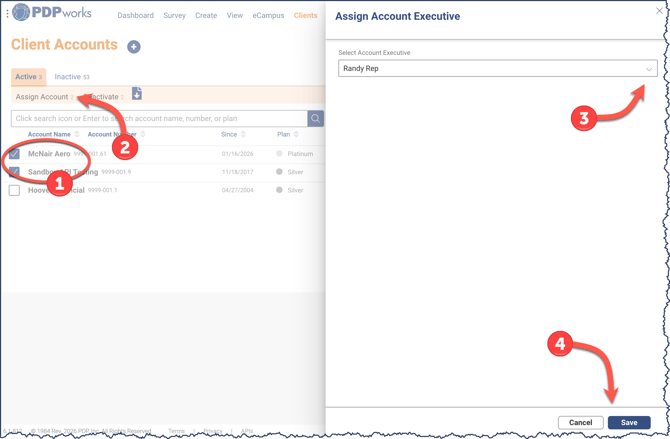
To assign an account, go to the Client Accounts page and follow these steps:
-
Select one or more clients,
-
Click the Assign Account action link,
-
Choose the appropriate account executive from the panel (the pull-down order is Key Contact name first, followed by Account Executives in alphabetical order by last name.), and
- Click Save button.
What all does the assigning of accounts do?
-
Filters the client list to only those assigned to the account executive user
- Filters the Renewal Analyzer and Sales Activity to the accounts assigned to the account executive
- Features the name, email and phone number of the account executive on the client user's My Account Executive dashboard tile.
Action required!
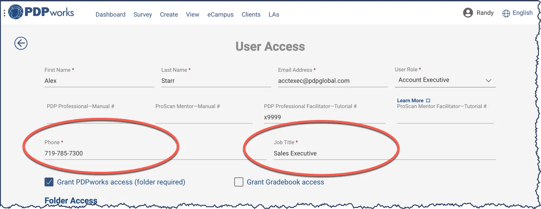
Since the phone field is new, please add the
best phone number for clients to call for service.
Go to Manage Users and enter each Account Executive's phone number.
Think of the assigning feature as a filter that displays accounts and activities relevant to each user. It does not restrict users from servicing other accounts; rather, it focuses their view on the information that matters most to them.
If an account executive needs to access a team member's client while on vacation or leave, they can easily change the filter to select another name or choose All to view all client activity.