
Updated September 4, 2026 5:00pm MDT
Notice of planned maintenance.
Users may find an access disruption sometime Saturday evening to Sunday morning (9/5 to 9/6) for planned PDPworks maintenance.
Updated August 13, 2026 8:00pm MDT
Manage Folders Gets a Fresh New Look!
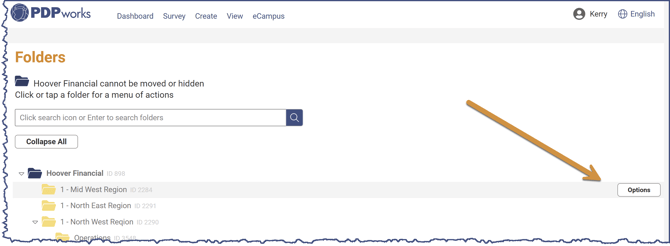
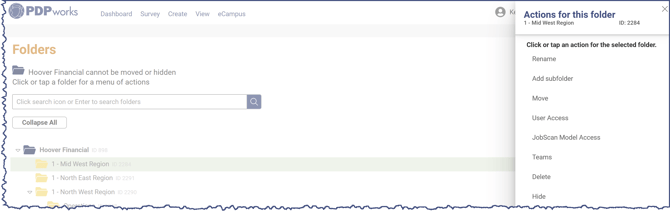
The heart of organization in your PDPworks account is through the management of folders. The manage folders look has been refreshed for a more condensed look. Folders can now be managed and added on the fly throughout PDPworks on the create Survey pages (links, invitations, or manual entry) and on the view pages, in addition to the existing manage folders page. Select the options button on the far right and select the desired action in the panel. Read more on how to Manage Folders.
Updated July 1, 2026 9:00am MDT
Custom Interview Questions Gets a Fresh New Look!
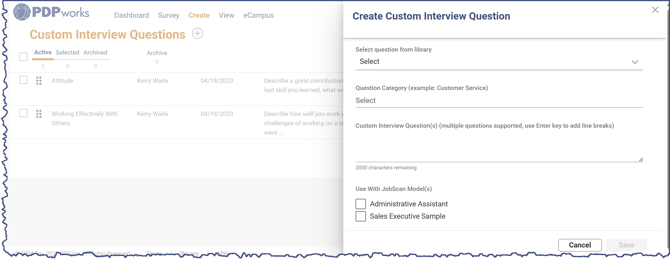
One of PDP's most powerful and underutilized hiring features just received a user interface update consistent with other PDPworks pages. If your CEO, founder, or hiring leaders have specific questions they want every candidate to answer, Custom Interview Questions allows those questions to be embedded directly into the Candidate Interview Report—ensuring consistency across interviewers and helping candidates be evaluated against the same criteria. Read more on how to add Custom Interview Questions.
Updated May 22, 2026 9:45am MDT
We have updated the management process for users and survey links, and we have released Sertifier links on eCampus.
Digital Credentialing for PDP Certifications!
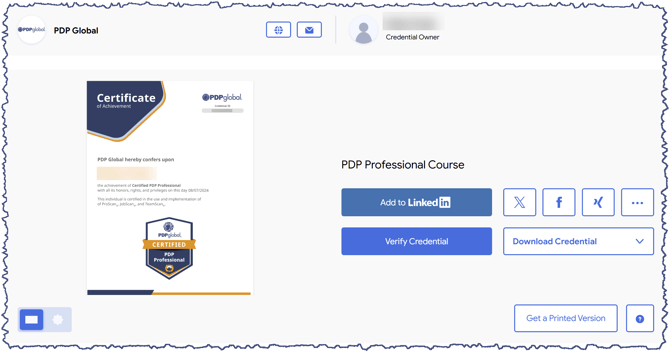
Issue, Manage and Verify Credentials with Sertifier.
Sertifier is Trusted By The Giants of Industry For Their Digital Credentials.
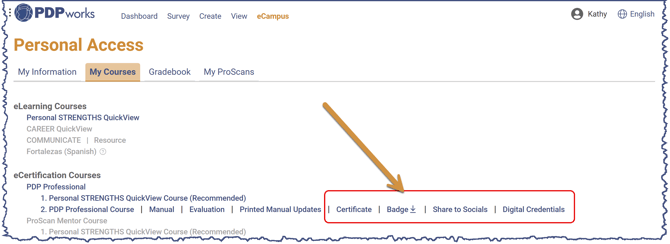
- Certificate - downloads as a PDF (below, left)
- Badge - downloads as a PNG (below, right)


-
Share to Socials - Share your accomplishments and professional development with colleagues and friends. Clicking will open Sertifier in a new tab, allowing you to share on social sites like LinkedIn, X, Xing, WhatsApp, or Yammer!
- Digital Credentials - Your Sertifier credential page verifies your accomplishments along with certification credentials, including a description, skills, and earning criteria.
Manage Users Enhancement

Manage Survey Links Update
We've updated the Survey Links page to match the same clean and fresh consistency of the View Page design for a more simple user experience.
- Active/Inactive tabs
- Search, Filter, and Sort options
- View Completed Surveys option (see previous update below on March 31, 2026)

Updated: April 6, 2026 4:50pm MDT
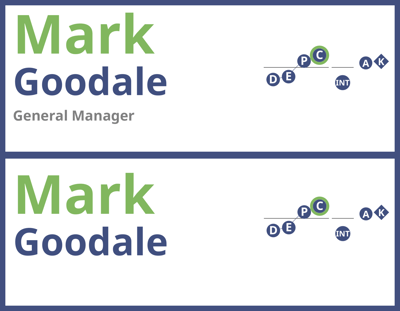
Name Tent customization is now here!
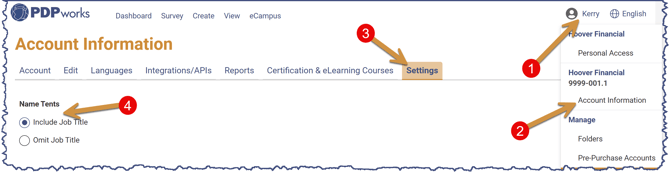
Users now have the ability to customize the display of nametags to include (which is the default) or to omit the job title from printing on the Name Tents. To adjust the setting click on the Username > Account Information > Settings > select include or omit.
Updated: March 31, 2026 3:18pm MDT
Find the missing link between the View All and Survey Links
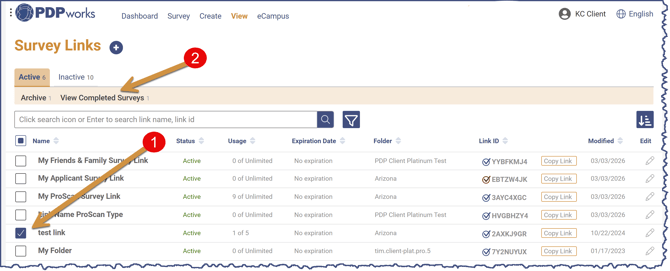
Users now have the ability to view all surveys that have been taken through a specific active Survey Link. You can either access directly from the Survey Links page or by filtering in the View All.
To access from the Survey Links page: Select the checkbox of the desired Link then select "View Completed Surveys."
To access from the View All: select the filter icon in the top-right of the View All page, then scroll and select the desired Survey Link, then select.
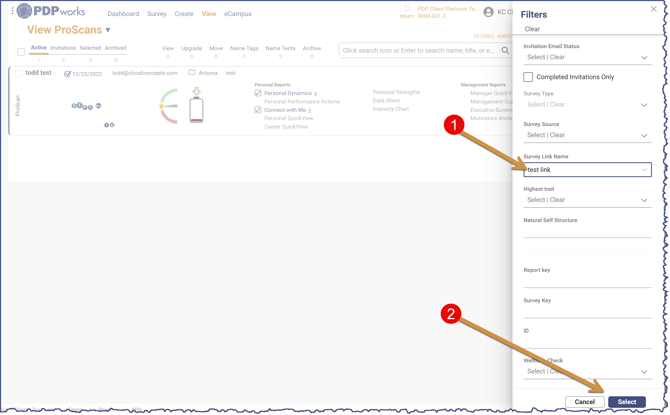
Caution: Only active Survey Links can be accessed in the filter. If you are not finding a Survey Link, you may need to unarchive a previous link to view associated surveys.
Updated: February 4, 2026 1:54pm MST
Cleanup on Aisle, er, the ProScan Report Rows
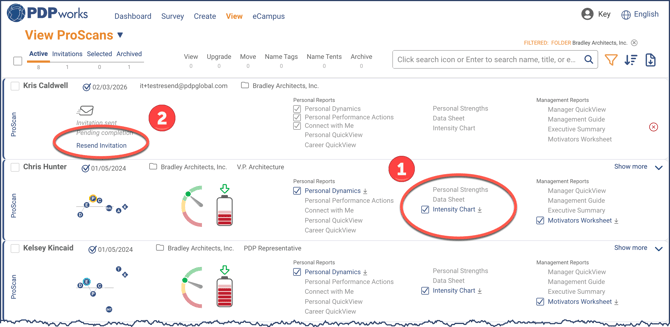
Well that didn't work well as we expected. Tucking the seldom-used ProScan reports into the detail panel not only required an extra click, but the filtering by report also failed to include those extra reports when users clicked the "View" action link. To reduce unnecessary clicks and prevent issues with the "View" function, the ProScan row now displays three columns of reports (See #1 below). The second column has been updated to include the "extra reports" that were previously found on the detail panel.
Additionally, we've made a few tidy adjustments: the "Resend Invitation" link has been moved below the pending envelope icon for easier visibility (See #2 below).
Easily Resend Multiple Invitations
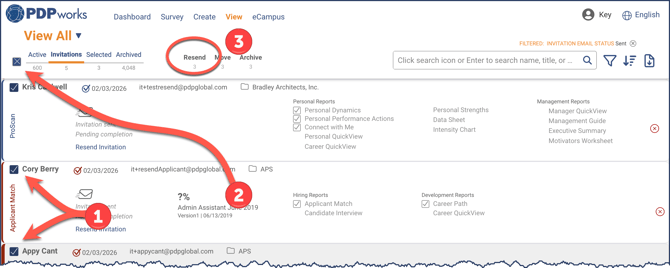
Users now have the ability to select and resend multiple invitations at once, including ProScan, applicant, and JobScan invitations. You can choose invitations one at a time (#1) or select all (#2) to resend them in a batch. Simply click the Resend action link (#3). It's a quick and easy way to manage your invitations!
New TeamScan Facilitator Prompt: Motivators Worksheet "homework" Reminder
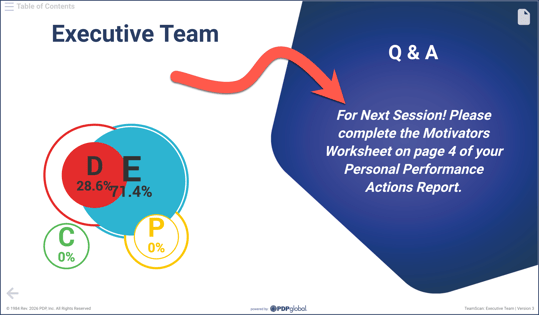
The Q&A slide for session deck 3 has been revised to remind facilitators to have participants complete the Motivators Worksheet before the next team session.
Updated: January 22, 2026 2:30pm MT
Streamlined Create Applicant Match Process
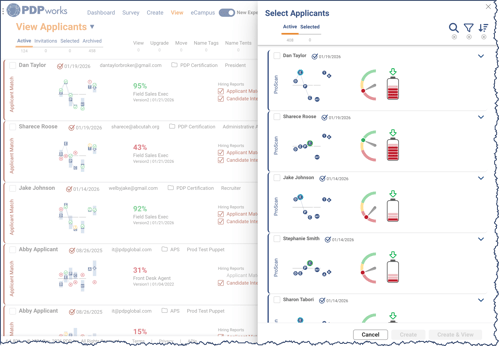
The Select Applicants panel has been updated to display the profile, satisfaction, and energy drain graphics for each survey, ensuring consistency with the other row presentations in the new experience release. When matches are created, users will be returned to the View Applicants page for easy access to their match history.
Updated: January 8, 2026 5:24pm MT
New Graphics Added to ProScan Reports
Feedback on the updated ProScan graphics has been very positive. The Natural Self image highlights the highest trait using designated colors. Additionally, the Satisfaction arc graphic and the Energy Drain with Available Energy battery graphic have also received favorable responses (as shown below—Refer to the "How to Read" insert for a graphical explanation).
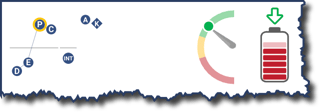
How to Read New Graphics
Natural Self Image
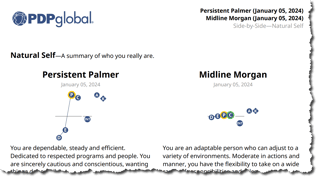
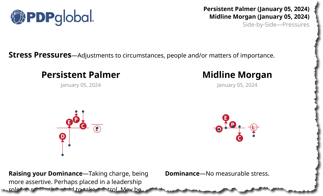
The familiar profile graphic has been enhanced and emphasizes the highest trait using designated colors: red for dominance, blue for extroversion, gold for pace, and green for conformity. Please note that all midlines are plotted at the center for visual consistency, similar to the Intensity Chart.
To understand the more scientific placement of the profile, as shown on the Data Sheet, refer to the Energy Level <K>. A higher <K> value indicates a higher placement of the profile, while a lower <K> value corresponds to a lower placement of the profile on the Data Sheet. (See Side by Side images below for a visual).
Satisfaction Arc
The new satisfaction graphic is featured in ProScan and TeamScan rows on view pages. Color zones indicate levels of satisfaction: green for high satisfaction, yellow for average, and red for low satisfaction.
Energy Drain and Available Energy Battery
To align with the new TeamScan experience, a color-coded down arrow indicates the significance of energy drain: green for minimal to average drain, yellow for somewhat significant drain, and red for very significant drain.
The following ProScan reports now align with the graphics you've appreciated in the application views:
-
QuickViews: Career QuickView, Manager QuickView, and Personal QuickView
-
Personal Performance Actions
-
Name Tags
- Side by Sides: Natural Self and Pressures
The images below illustrate the alignment of midlines. Note that the Priority Environment trait labels consistently plot inside the trait circle, regardless of whether stress is measurable or not.
Updated: December 18, 2025
Old Experience Sunsetted
The time has come to remove the UI toggle for accessing the old version of PDPworks. Moving forward, please enjoy working in the new experience, which offers improved functionality and performance. What was left in place as a safety net has started to show its age and is now causing issues. Consolidating to the new experience ensures better stability and efficiency for everyone.
Updated: December 1, 2025 5:24pm MT
New TeamScan Experience Release
The wait is over! The redesigned TeamScan experience is live.
Our design and engineering teams have fully reimagined the TeamScan experience, delivering significant enhancements from session preparation through to the delivery of polished team graphics, session decks and handouts. To access the updated TeamScan, navigate to View TeamScans.
Gold and Silver Plan users can select the Upgrade TeamScan option—this process automatically factors in previously generated reports and calculates the appropriate upgrade cost. After upgrading, the TeamScan entry will showcase new visuals, updated session decks, and downloadable handouts for each session.
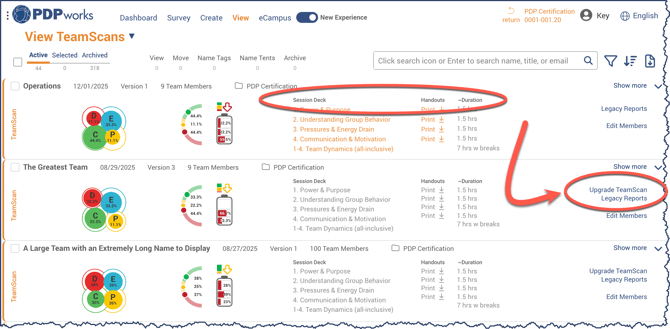
Still want access to the old style of TeamScan reports? Click the Legacy Reports link to see a list of all the reports.
Updated: November 18, 2025 4:51pm MT
A global, enterprise-grade content delivery network (CDN)
We have implemented Cloudflare’s content delivery network (CDN) to intelligently optimize both static and dynamic content for device, browser, and bandwidth requirements. This enhancement improves system performance and reliability across all regions, ensuring an exceptional user experience nationwide and internationally.
Updated: November 6, 2025 4:53pm MT
Stripped Down Survey Landing Page (aka "grey label")
Accessing and completing surveys is essential for our users' daily operations and decision-making. As device operating systems are continually upgraded, we have chosen to create the simplest, least technology-dependent survey landing page. This design allows respondents to easily access our surveys, providing a seamless experience on most desktop and mobile devices.
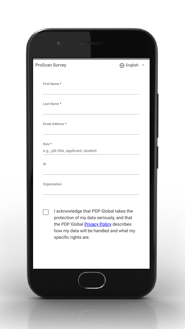
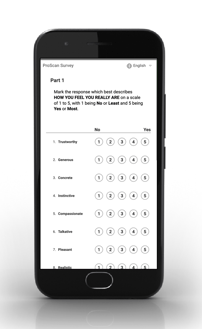
Image: Mobile display of ProScan Survey Information and Part 1 page on an older iPhone.
Updated: October 17, 2025 2:00pm MT
Name Tents
We are excited to announce our latest feature — Name Tents, are now available to download and print. For downloading instructions please visit the following article in our Knowledge Base: How to Print Name Tents

Image: Name Tent Example
Updated: September 19, 2025 2:05pm MT
Below is an overview of the most recent features released. These features include Filtering, Sorting, and Applicant Match Ranking.
The following graphic shows where to find these features, followed by two tables depicting what filter or sort option is available on each View page, and the Applicant Match Rank instructions.
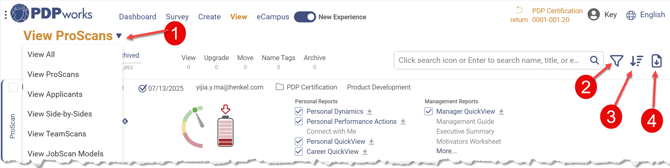
- The upside-down triangle allows you to navigate between the various View pages.
- The funnel icon opens the Filter panel
- The descending icon opens the Sort panel
- The download icon allows for a CSV file to be downloaded with the information for the page (including if it is filtered and sorted).
Filtering Options by View
| View: | All | ProScans | Applicants | Side-by-Side | TeamScans | JobScan Models |
| Notes, tags | ✅ | ✅ | ✅ | ✅ | ✅ | ✅ |
| Date | ✅ | ✅ | ✅ | ✅ | ✅ | ✅ |
| Folder | ✅ | ✅ | ✅ | ✅ | ✅ | ✅ |
| Report | ✅ | ✅ | ✅ | ✅ | ✅ | ✅ |
| Survey Type | ✅ | ✅ | ✅ | ✅ | ✅ | ✅ |
| Survey Source | ✅ | ✅ | ✅ | ✅ | ✅ | ✅ |
| Report Key | ✅ | ✅ | ✅ | ✅ | ✅ | ✅ |
| Survey Key | ✅ | ✅ | ✅ | ✅ | ||
| Invitation Email Status | ✅ | ✅ | ✅ | ✅ | ||
| Highest Trait | ✅ | ✅ | ✅ | ✅ | ||
| Natural Self Structure | ✅ | ✅ | ||||
| JobScan Model | ✅ | |||||
| ID | ✅ | ✅ | ✅ | ✅ |
Sorting Options by View
| View: | All | ProScans | Applicants | Side-by-Side | TeamScans | JobScan Models |
| Date | ✅ | ✅ | ✅ | ✅ | ✅ | ✅ |
| ✅ | ✅ | ✅ | ✅ | |||
| Energy Drain | ✅ | ✅ | ||||
| Folder | ✅ | ✅ | ✅ | ✅ | ✅ | ✅ |
| Name | ✅ | ✅ | ✅ | ✅ | ✅ | ✅ |
| Highest Trait | ✅ | ✅ | ✅ | ✅ | ||
| Invitation Email Status | ✅ | ✅ | ✅ | ✅ | ||
| Respondent Job Title | ✅ | ✅ | ✅ | ✅ | ||
| Satisfaction | ✅ | ✅ | ✅ | ✅ | ||
| Survey Type | ✅ | |||||
| Match Score | ✅ | |||||
| Display Order | ✅ | ✅ | ✅ | ✅ | ✅ |
Applicant Match Ranking
This feature enables immediate, one-click access to a comprehensive list of all applicants matched to a specific JobScan Model.
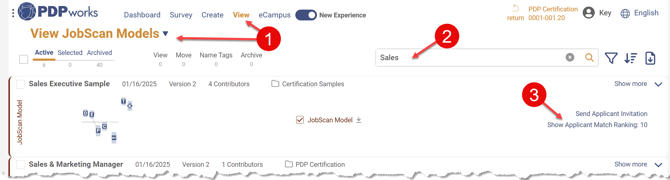
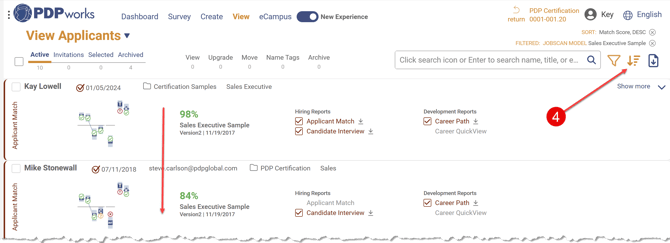
Applicants are automatically ranked in order of highest to lowest percentage match, allowing for efficient evaluation and comparison.
- Navigate to the View JobScan Models page.
- Search for the desired Model.
- Select the Show Applicant Match Ranking line.
- Applicants will be displayed in descending order from highest % match to lowest based on the JobScan Model. This can be switched to ascending order using the sort button.
Updated: March 11, 2025 2:35pm MT
Some items are still undergoing final adjustments; however, we did not want to postpone the release. As new items become available, we will notify you via the Support Center notification bell, directing you to this article for the latest updates.
Here is a summary of the current items our developers are actively addressing (🔲 indicates not working/in progress, and ✅ indicates working well):
- Not Working/In Progress
- View Pages
- Sort icon—add icon and functionality ✅
- Add create icon and functionality
- Mobile rendering 🔲
- Address oddities in View pages not clearing filtered data when moving between view pages ✅
- Create menu—items not functioning yet for New Experience version
- Create Applicant Matches & Career Paths 🔲
- Create JobScan Models ✅
- Create Side-by-Sides ✅
- Create TeamScans—add create and edit ✅
- View Pages
- Working well
- Dashboard:
- Survey Status tile—
- pending Invitation and Survey Link graphics are working properly ✅
- graphic sections and legend are clickable and takes users to appropriate page and lists the correct information in rows ✅
- Account Activity—
- Counts are correct—clicking on a button takes user to the view page listing proper information ✅
- Enterprise and Platinum plan counts are based on contract start date to today's date ✅
- Gold and Silver plans counts are based on a rolling 12 months from today's day ✅
- Counts are correct—clicking on a button takes user to the view page listing proper information ✅
- Survey Status tile—
- Dashboard:
-
-
-
- clicking on a folder row takes user to the view page listing the surveys processed for that folder during the contract period ✅
-
-
-
-
- Folder Activity (Platinum and Enterprise users)
- clicking folder row takes user to a listing of surveys filtered according to the contract date to today's date ✅
- clicking folder row takes user to a listing of surveys filtered according to the contract date to today's date ✅
- Usage graphic missing? Then there are no surveys processed in that account.
- Mobile rendering ✅
- Folder Activity (Platinum and Enterprise users)
-
-
- View Pages
- Download CSV for view pages—add icon and download functionality ✅
- View Pages
Should you see oddities or inconsistencies, please submit a support issue using the Support/Help icon (?) in the footer, right corner, so we can look into your situation closer.
Enjoy familiarizing yourself with the engaging and powerful New PDP Experience!